
Releases 0.102 to 0.105 went out between 19 and 23 November. They make everyday jobs quicker: changing a page, answering a customer about their order, signing in, and cooking to order.
Edit a page while you look at it
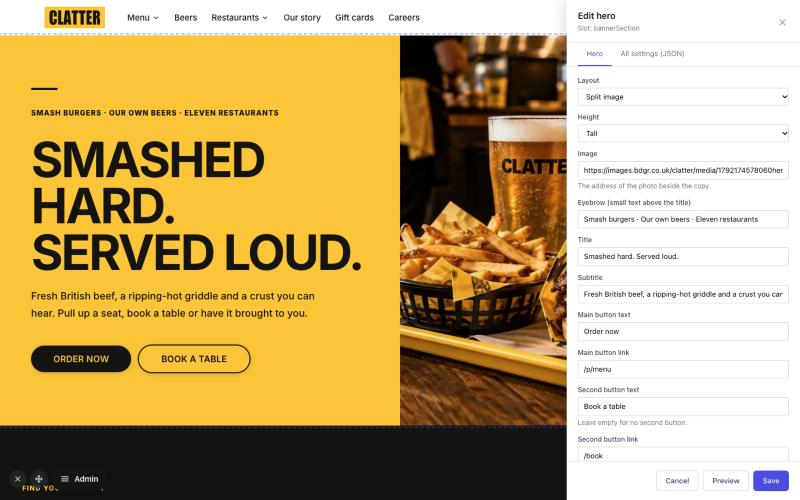
When you're signed in as staff, every page of your shop now shows a small Admin button. Choose Edit this page and a side panel opens beside the page. Point at any block, such as a banner, a product grid or a piece of text, and change it in the panel. Preview shows the change in your own theme, exactly as shoppers will see it, before you Save.
Text opens in a plain writing editor. For a block that appears on every page of a type, such as a sidebar on every blog post, you choose whether the change is for this page only or for all of them. See storefronts.
Conversations about an order
Customers often answer an order email with a question: can I change the address, when will it arrive? Those replies now come straight into your customer messages as a conversation about that order. You see it on the order itself, and later replies join it, so the whole exchange stays in one place.
You can also write first. If an item is out of stock or an order is running late, choose Message customer on the order. The customer gets an email from your shop, and their answer comes back into the same conversation. You decide who hears about each new message: everyone who answers customers, or one named person. See operations.
Sign in with Microsoft
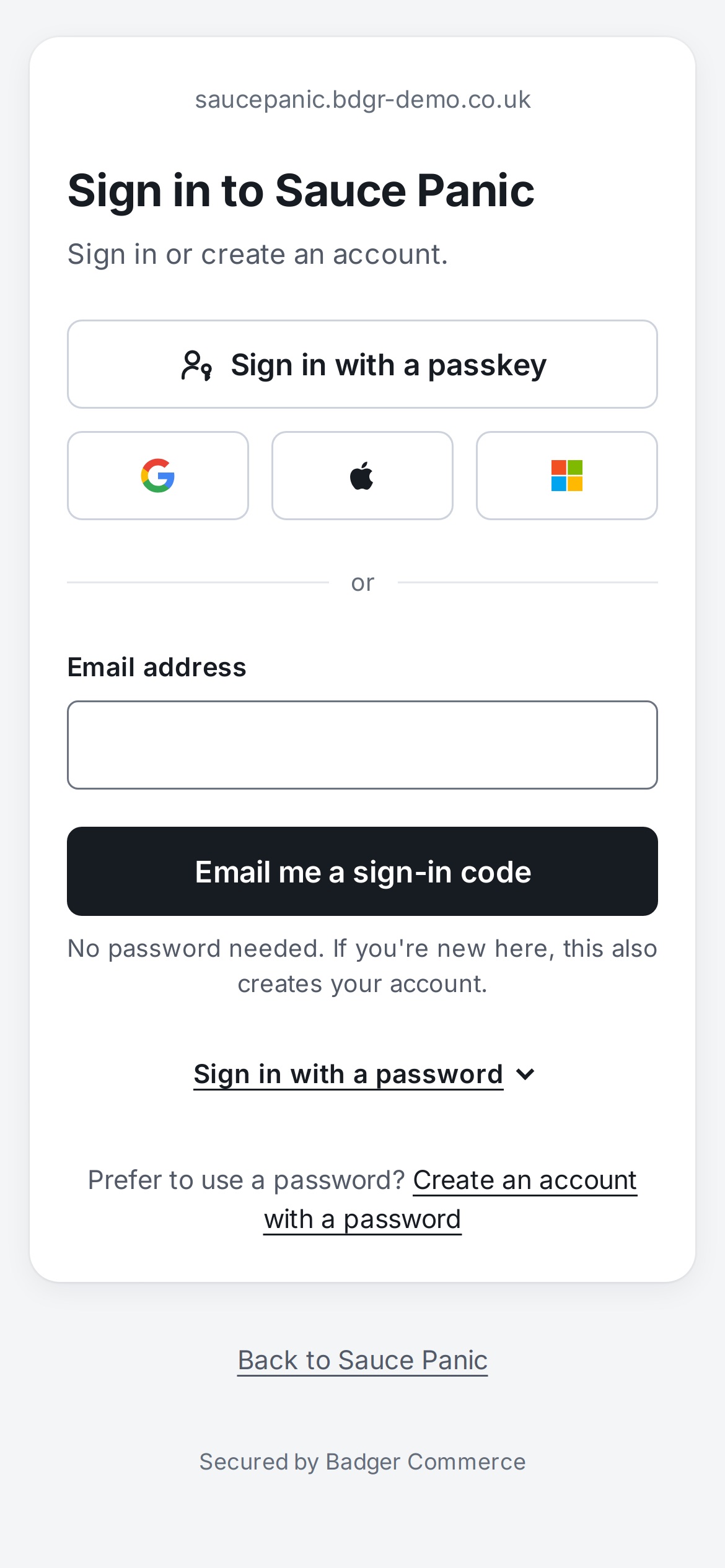
Customers and staff can now sign in with a Microsoft account: a work or school account on Microsoft 365, or a personal Outlook.com or Hotmail account. That helps shops that sell to businesses, schools and charities, whose buyers already sign in to Microsoft all day. There's no new password to make up and no code to wait for. Your own team can use their work accounts for the admin too.
The sign-in page also marks the way each browser signed in last time, so returning customers pick the right button first. And before a Google, Apple or Microsoft account is joined to an existing account for the first time, we email a code to the account's owner. Nobody can get into someone's account just by having their email address on a Microsoft account of their own. Microsoft sign-in is part of Badger sign-in, which every new shop starts on. See Badger sign-in.
Kitchens: a wall-screen mode and allergies on the ticket
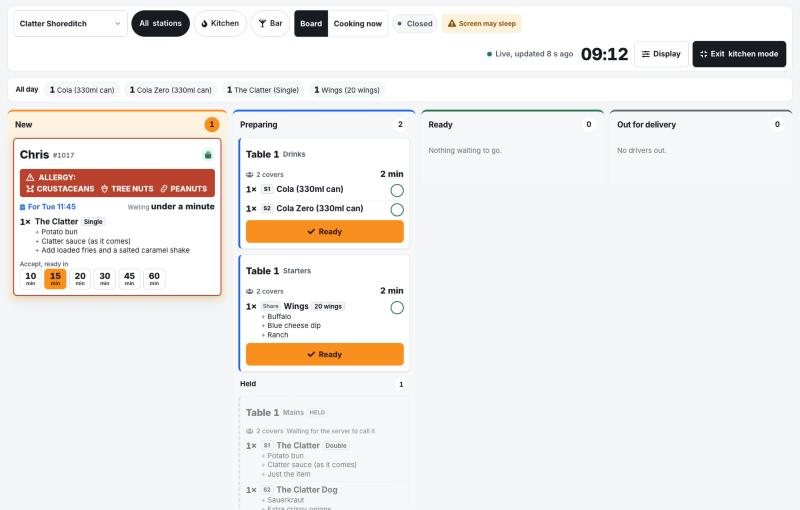
The kitchen board has a new Kitchen mode for a monitor on the wall or a tablet on the pass. It fills the screen and shows a large clock. A new Cooking now view adds up every dish still to cook across all the tickets, so a station can cook one batch for several orders.
Food orders now ask at checkout whether anyone in the order has a food allergy. The customer taps any of the 14 UK allergens and can add anything else, such as coeliac or kiwi. The kitchen ticket shows their answer next to the order, and orders for a table show the allergies recorded with the booking. See restaurants.
Also in 0.102 to 0.105
- Heroes can move more: three new backgrounds (a rolling landscape, a globe visitors can spin and soft fields of your brand colours), levels from Subtle to Showpiece, and an entrance animation for every hero layout.
- Adding your own domain is easier: the page shows the exact records to add at your domain provider, each with a copy button, and explains what to fix if a check fails.
- New shops get an address ending in bdgr.shop until they add their own domain.
- Changing your password signs you out everywhere else, including the Badger app and any AI assistant connected to your shop.
- A shop can issue Apple Wallet passes under its own name, so its in-store cards and tickets sit apart from other shops' passes in a customer's wallet. See event tickets.
- In the Badger app (in pilot), staff who answer customers can read and reply to customer messages, and their phone tells them when a new one arrives. See POS.